
Nobody likes to see a blurry logo. A poor-resolution logo never looks attractive. A great logo looks poor in low resolution. So, logo quality matters more than the design. Vector logo is the solution here.
You might have a small raster version of your logo. Don’t worry. You can make it a vector logo. You just need to follow the tutorial of how to make a vector logo in Adobe Illustrator.
Then, your logo will be suitable to use for every professional platform. So, let’s learn the manual process of Logo Vectorization.
How To Make A Vector Logo Using Adobe Illustrator?
Step 1: Open Adobe Illustrator
Step 2: Import the Raster Logo
Step 3: Trace The Logo Manually
Step 4: Trace Remaining Logo
Step 5: Group The Shapes
Step 6: Save The Logo
Step 1: Open Adobe Illustrator
Launch Adobe Illustrator and create a new document. You can start with a 1000 px * 1000 px artboard to make a vector logo. You will have enough working space. Keep the color mode as CMYK for printing. Use RGB for web graphics.
Step 2: Import the Raster Logo
Now, import your old JPG or PNG version logo into Illustrator. Click on the file option from the top and select place. We’re going to work on this logo.
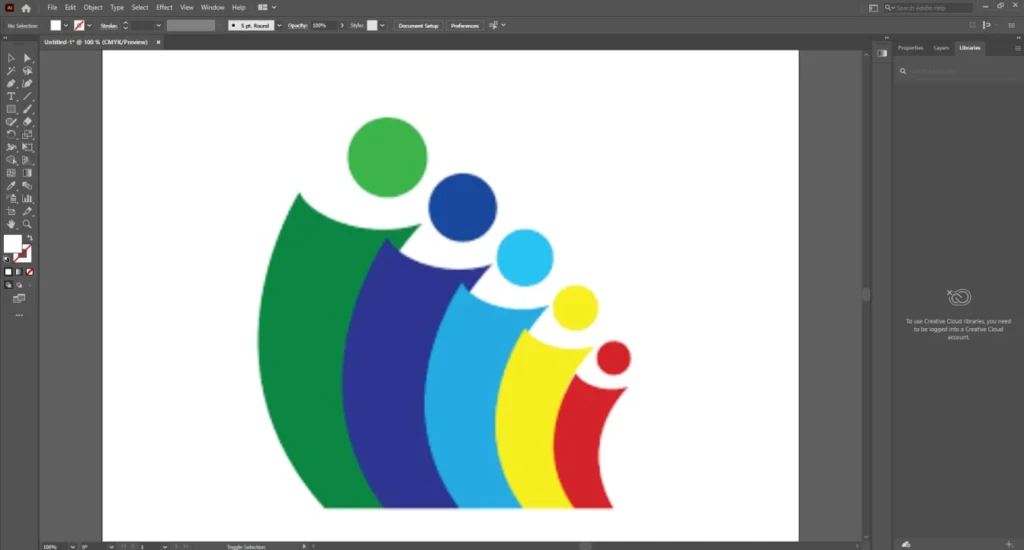
After choosing your raster logo, resize it carefully by holding Shift to maintain proportions. Then, lock the original Layer with CTRL + 2. Locking the raster image prevents unwanted movement during tracing. This makes the tracing process much easier.
Step 3: Trace The Logo Manually
Adobe Illustrator has all the tools to trace a logo manually. We are going to use the pen tool to convert raster images into vector paths. Select the pen tool and start creating paths based on the logo shape.
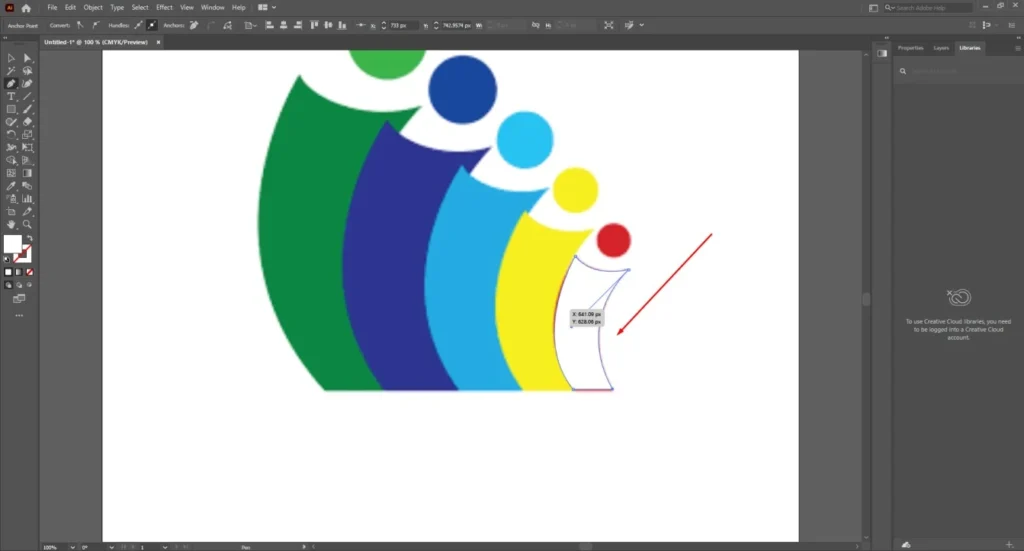
After tracing a shape, choose the color picker option to paint the sample color. You can also use the shape tool for logos with solid shapes. For this logo, I need to repeat another shape.
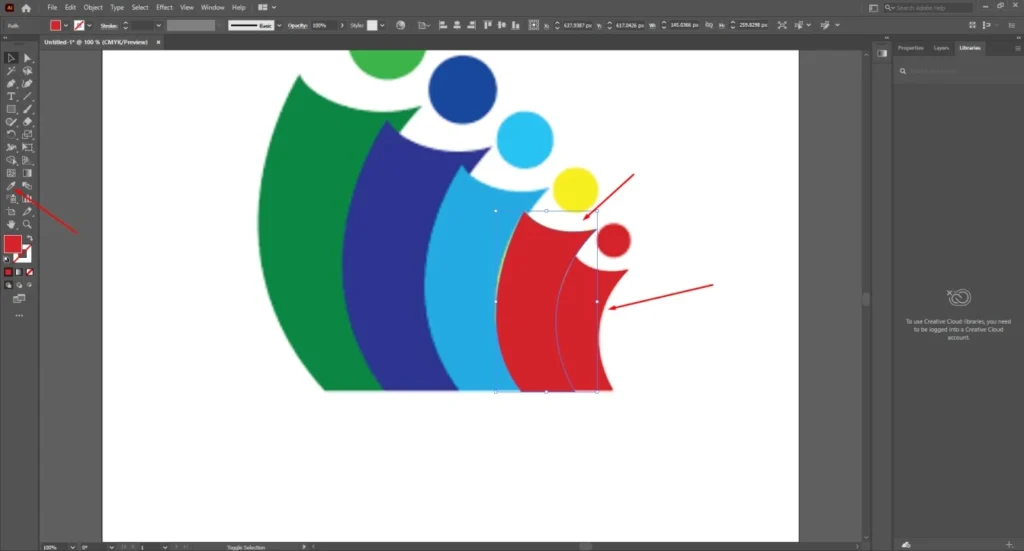
You can hold the ALT key and click on the shape to duplicate it.
Step 4: Trace Remaining Logo
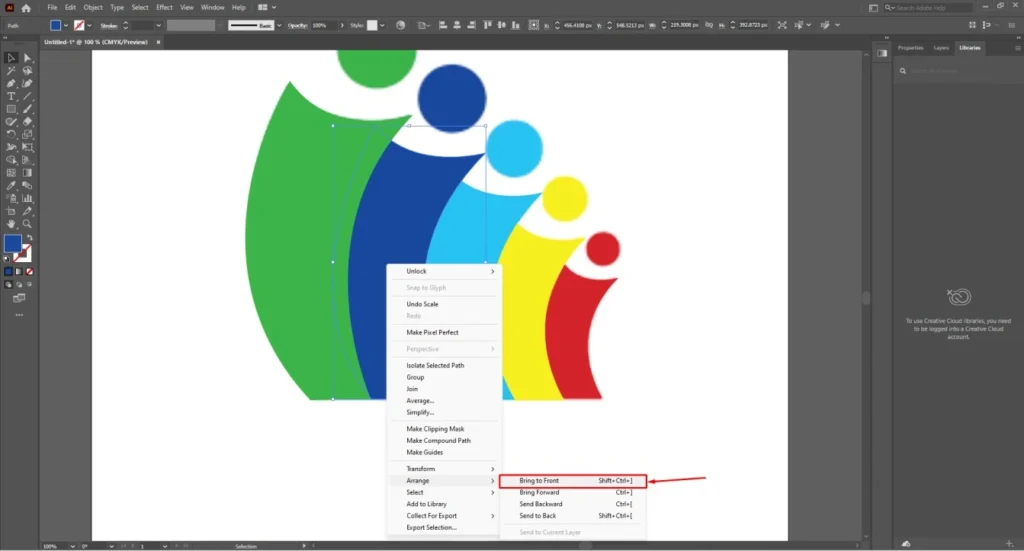
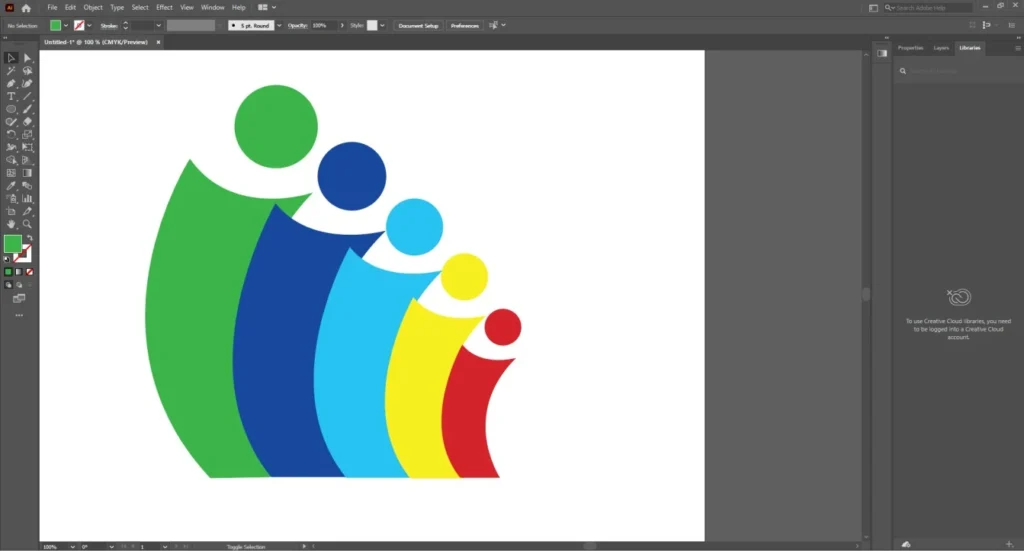
We have to trace the full logo section by section. So, I have to trace more shapes to match the sample logo. After that, use the arrange option to manage the layer alignment. We need to bring some shape to the front so it matches the logo we want to make.
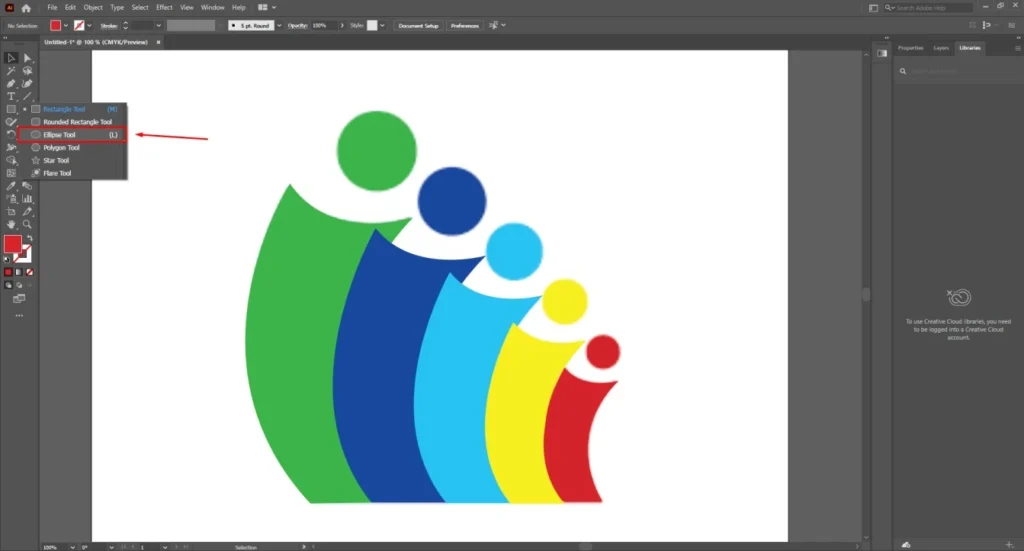
At this point, we have to recreate the round shapes in different colors. We can do that by using the Ellipse tool. Hold the shift key and draw a circle using the ellipse tool. It will keep the circle in the right proportion.
Step 5: Group The Shapes
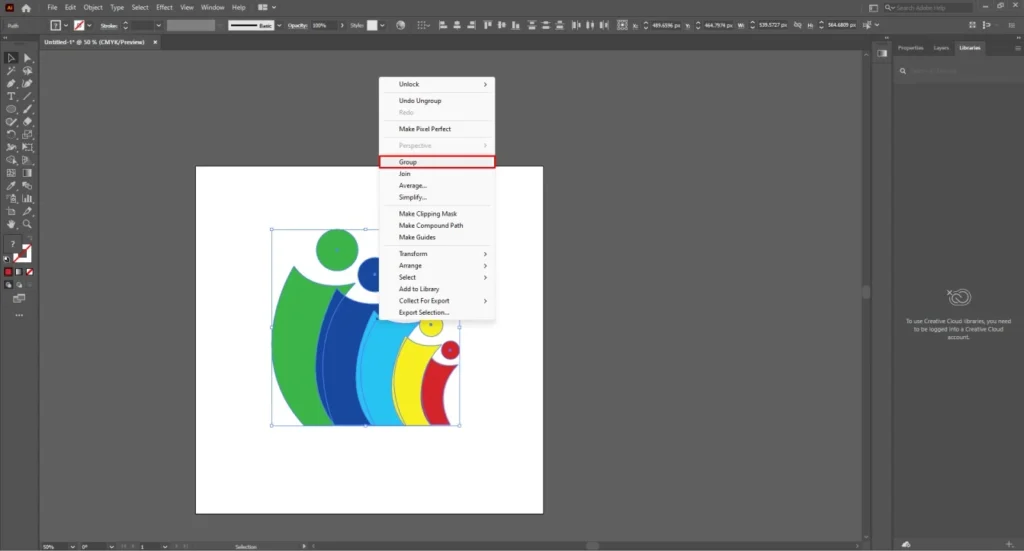
At this stage, we are very close to make a vector logo. To keep everything aligned together, right-click on the logo and select the group option from the list.
After that, you can unlock the previous old logo and separate it from the vector logo. The difference is clearly visible here.
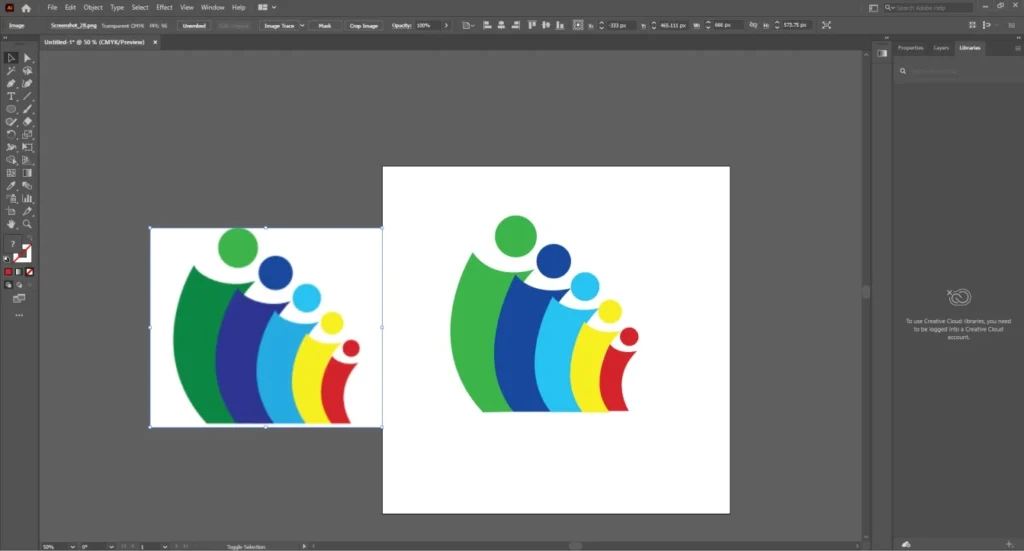
The same logo looks more attractive in vector format.
Step 6: Save The Logo
Go to the file option once again and choose the “Save A Copy” option from the list. If you want to save it as an editable version, you should save it as an AI format. For web use, you can save it as SVG.
If you save the logo as JPG and PNG, it won’t be a proper vector logo. So, that’s the process of how to make a vector logo in Illustrator.
Why should You Trace Vector Logo Manually?
Nowadays, many online tools are available for auto vector tracing. Why should you spend your time tracing vector logos manually?
Almost all AI tools provide inaccurate results in vector tracing. You can not use poor-quality logos with visible traces and missing details.
To get everything right, you have to do it manually. Adobe Illustrator is the industry standard for that. It gives you more accurate curves with perfect anchor points.
Also, you get lots of fonts for better typography matching. It improves the printing results. Manual vectorization is important for brand logos.
5 Mistakes to Avoid To Make A Vector Logo
- Avoid poor source images. It creates difficulties in tracing if you don’t have previous experience.
- Relying too much on auto traces. Logo is a precise art. Auto tracing damages that accuracy.
- Don’t overlook the path clean-up process. You might not get a perfect path at the first attempt. Use the curvature tool to adjust paths.
- Never forgetting to outline fonts. Missing fonts break logo designs on other devices. So, always convert text to outlines.
- Don’t save in the wrong file format. Different uses require different formats. You have to understand those requirements.
Sum Up
At this point, you should have a clear concept of how to make a vector logo. You have learned how to do it like a professional vector artist in Adobe Illustrator.
To make a perfect vector logo, it needs practice. Do you need a vector logo? Our Skilled Vector Artist team is available 24/7 to handle any vector logo requirements.
You can ask for a quotation now to get the exact pricing. Just send your sample logo and wait for 15 minutes for our reply. We can create any logo in vector format.
FAQ’s
How do I make my logo a vector?
You have to open the logo in Illustrator. Then, you have to use different path creation tools to trace a vector logo. You can also make a new vector logo with a fresh concept.
Is PNG a vector file?
PNG is not a vector format. It is a pixel-based raster image format. It supports transparency.
Can I convert a logo from PNG to vector?
You can convert a logo from PNG or any other raster image format. You just need to recreate the exact design using Adobe Illustrator.